
EceTempo
User guide
Follow your target heart rate range with Apple Watch and adjust your exercise tempo with live cues. This guide explains the basic steps from first setup to saving a workout.
Getting started and personal settings
Open the app
Open EceTempo on your Apple Watch. If you are preparing on your phone, use the Exercise tab. To install the beta, first download TestFlight from the App Store, then open the participation link below.
Try with TestFlight testflight.apple.com/join/B36JyYNN
Check your information
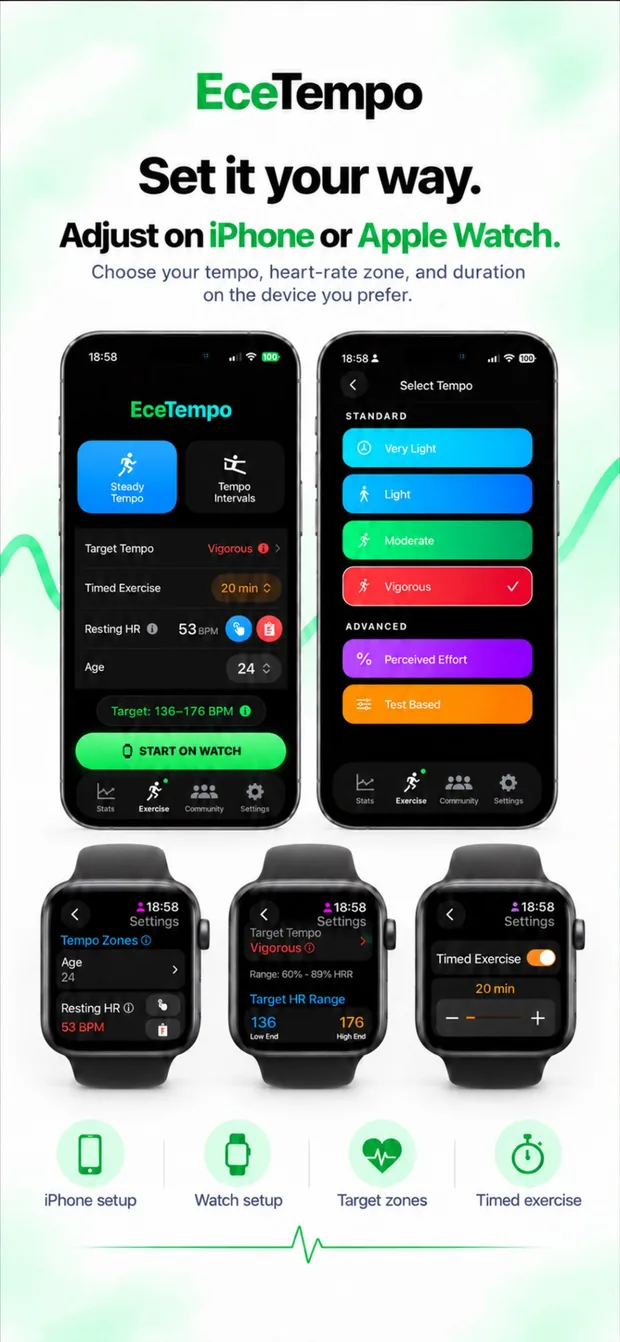
Open Settings with the gear icon on your watch. Enter your age and resting heart rate. You can use a known resting heart rate or choose the measurement option. Set the exercise duration and check the target heart rate range calculated on screen.
Choose your exercise mode
Steady Tempo lets you exercise within your selected target range. Tempo Intervals applies steps of different durations and intensities within one plan. After choosing on your phone, use START ON WATCH; on the watch, use START.
Choosing a tempo and exercising
Set your target for Steady Tempo
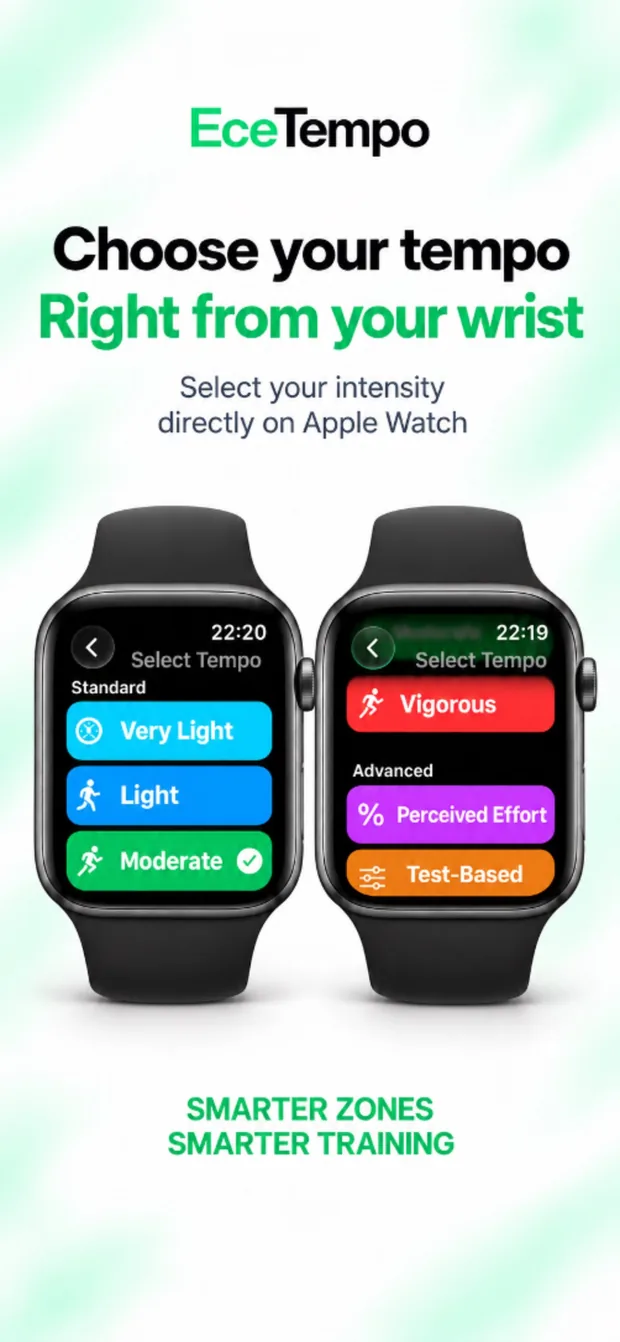
Choose Very Light, Light, Moderate or Vigorous. Standard targets are calculated from your age and resting heart rate using the Karvonen method. HRR stands for heart rate reserve.
| Tempo | Percentage of heart rate reserve |
|---|---|
| Very Light | 20–29% HRR |
| Light | 30–39% HRR |
| Moderate | 40–59% HRR |
| Vigorous | 60–89% HRR |
Advanced options
With Perceived Effort, you can adjust the lower and upper HRR percentages. With Test-Based, enter the lower and upper heart rate limits set during an exercise test, in beats per minute. Base your personal target on your clinician’s advice.
Start and follow the screen
After the warm-up screen, reach your target zone. When your heart rate is below or above the target, the app gives haptic and audio feedback. Adjust your tempo according to the cue.
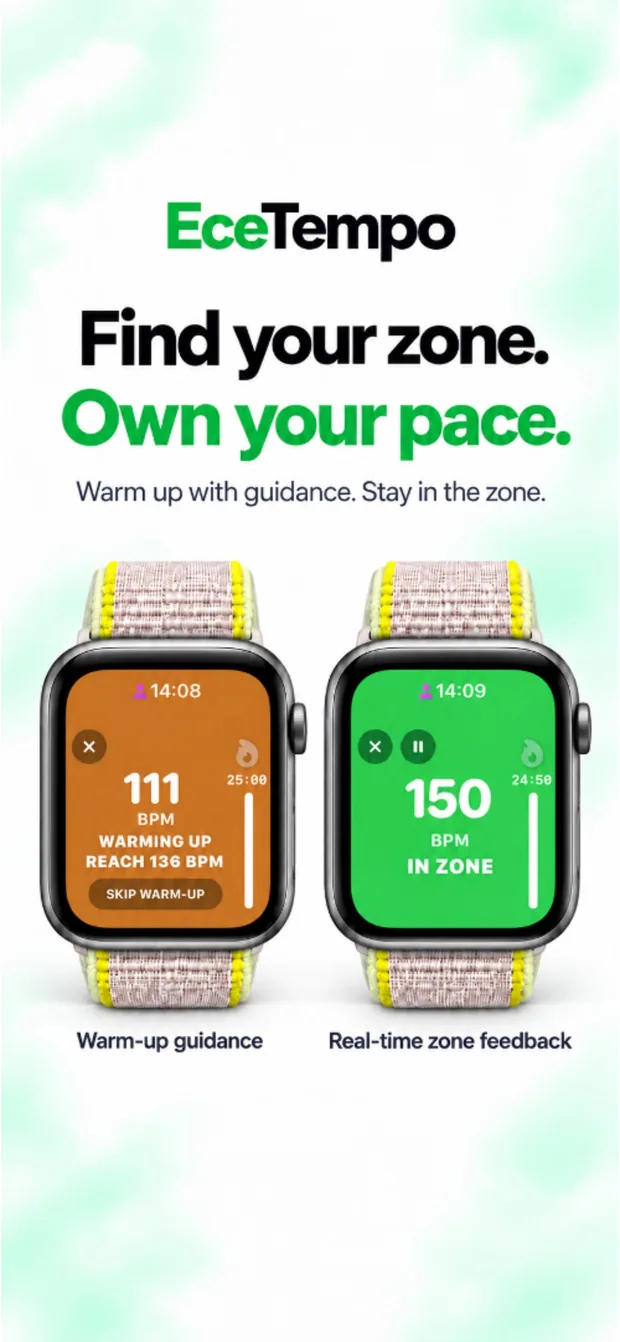
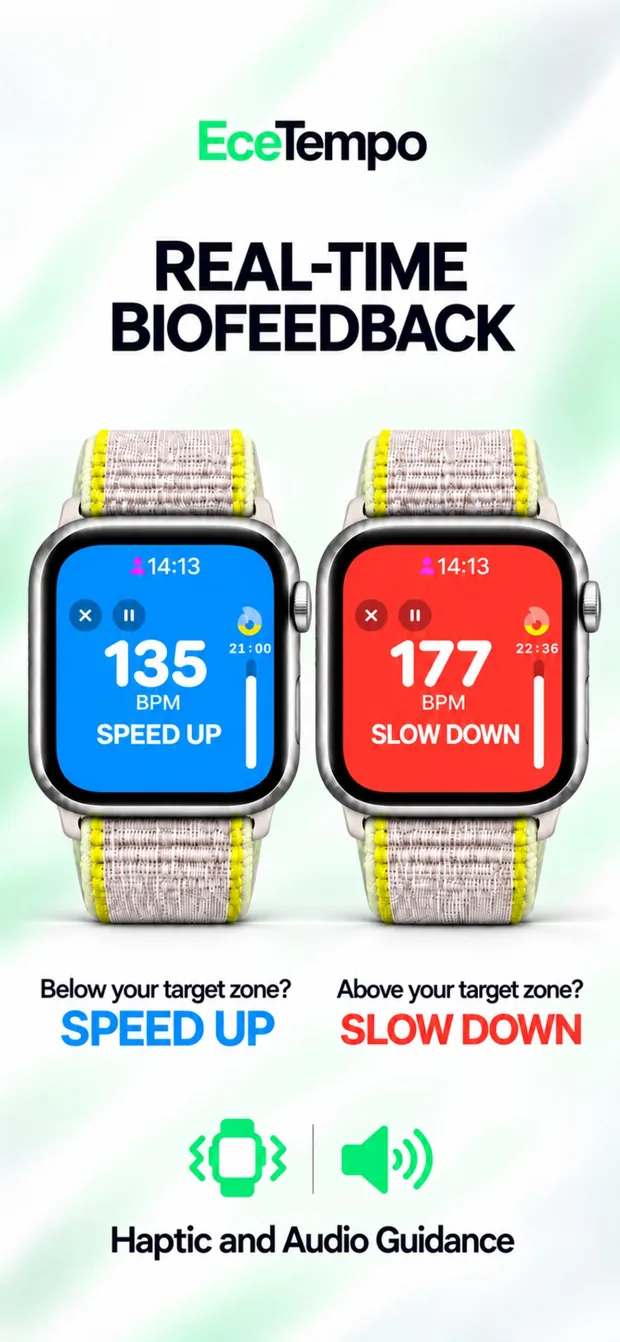
Use the pause icon to pause and the play icon to resume. Ten seconds before your exercise time ends, you will get an audio and haptic cue and can press +10 MIN to add time. Follow the recovery and cool-down screens at the end of the workout.
Steady tempo and interval plans
Steady tempo
Follow one selected target heart rate range throughout the session. Steady Tempo does not require a fixed walking or running speed. You may need to adjust your movement speed as gradient, fatigue or environmental conditions change.
Tempo intervals
Interval exercise combines sections with different durations and intensities in one plan. Create your own plan and arrange the order and duration of its stages. You can include warm up, work, active recovery and cool down sections.
Available preset options include 4×4 Karvonen, 10×1 Moderate Recovery, Norwegian 4×4 and 10×1 Light Recovery. Before starting, review the selected plan’s work and recovery durations, targets and total time.
| Plan group | Basis of the target |
|---|---|
| 4×4 Karvonen and 10×1 Moderate Recovery | Percentage of heart rate reserve — %HRR |
| Norwegian 4×4 and 10×1 Light Recovery | Percentage of maximum heart rate — %HRmax |
%HRR and %HRmax use different calculations; the same percentage does not give the same heart rate target. Follow the selected plan’s own targets. Not all interval exercise is HIIT. HIIT is interval exercise with work sections at high intensity; choosing a preset does not confirm that it is medically appropriate for you.
Intervals and following your results
Choose your interval plan
Open the Tempo Intervals section. Select a saved plan, or use Create New Plan to edit the steps. Alternatively, choose a suitable preset HIIT plan from the Scientific Protocols list. HIIT means high-intensity interval exercise. Review durations and target intensities before starting the plan.
Rate your effort and save
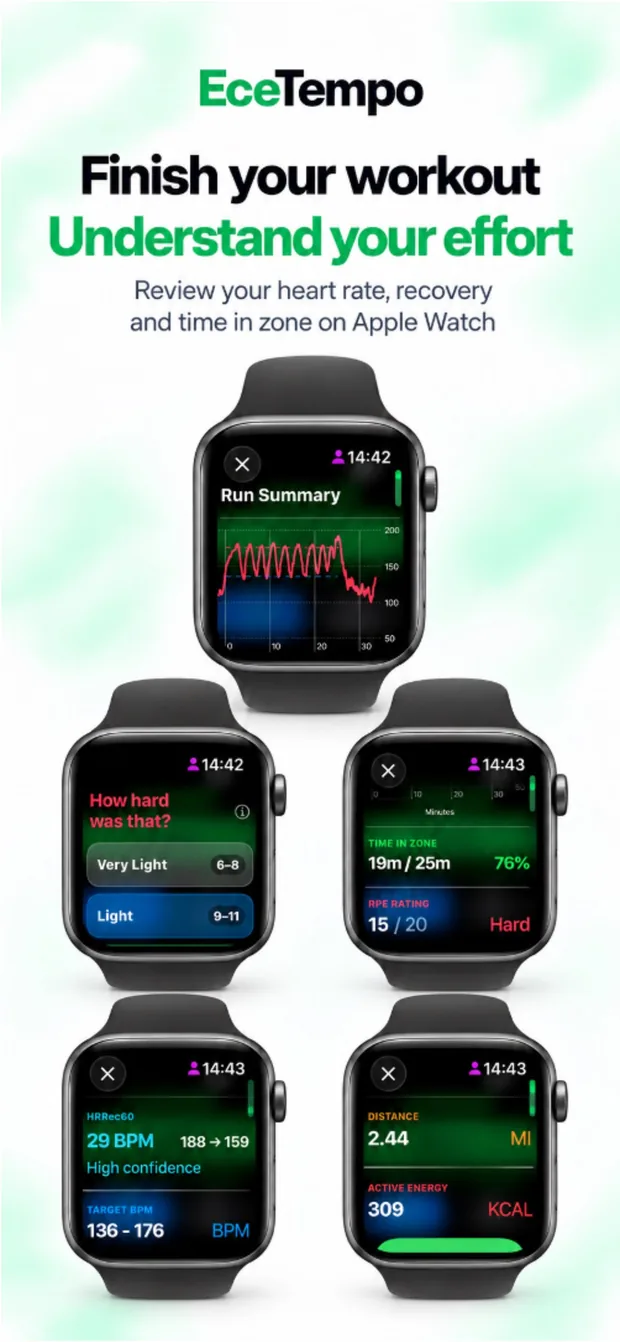
At the end of the workout, answer “How hard was that?” on the Borg 6–20 scale. In the workout summary, review the heart rate graph, time in the target zone and other available measurements. Tap Save and Close.
Follow your progress
Check your past workouts and the activity calendar. You can edit your weekly aerobic activity goal in Settings. On the phone, review your records and the motivation features shown in the Statistics, Exercise and Community tabs.
Before you begin and while exercising
Review your plan with your clinician if you have uncontrolled blood pressure, a new illness, symptoms or a medication change. If you take a beta blocker, agree your heart rate target with your clinician. Include warm-up, recovery and cool-down in interval exercise; build duration and intensity gradually.
Stop exercising and seek medical assessment if you develop chest pain or pressure, unusual breathlessness, dizziness or marked palpitations. Call for emergency help for chest pain, fainting or severe breathlessness.
Watch readings can be inaccurate. A heart rate target is not a guarantee of safety. EceTempo does not replace medical assessment or a personal exercise prescription.
Workout results and progress
Review your heart rate graph, time in the target zone and Borg effort rating together in the workout summary. Distance, active energy and heart rate recovery over one minute may also be displayed when the relevant measurements are available.
Time in zone shows how closely you followed the range you selected. It is not a standalone score of the workout’s benefit or safety. Heart rate recovery describes the fall in heart rate after exercise; it is different from the heart rate reserve used to calculate targets.
The Statistics section on iPhone lets you follow activity intensity, your exercise calendar, streaks and cardio fitness trends. VO₂max information depends on available records and permissions. An Apple Watch VO₂max value is an estimate, not a laboratory measurement, and a new value may not appear after every session. [8]
Your weekly aerobic activity goal →
Community motivation
Create a group or join one using a code in the Community section. These groups are called “clans” in the app. Compare weekly and monthly activity, exercise time and consistency. The shared aim is to maintain regular exercise at an appropriate level; a ranking should not be a reason to push beyond your capacity.
Managing your records
Choose how long to keep your history, import workouts from Apple Health, and use the app archive export or restore options. Manage health data permissions in your device settings. Review the information you choose to share when using community features.